EF Core migrations are the version control system for your database schema. Every change to your entity model gets captured as a timestamped, reversible migration file. This walkthrough covers everything from the first migration to production deployment strategies.
The Products entity and the four real migrations below — including the hand-edited backfill — live in
samples/ef-core-migrations-walkthrough.
They were generated by dotnet ef, not typed by hand, so you can inspect and run the exact files (see See It Work).
Prerequisites
Install the EF Core tools globally and add the design package to your project:
dotnet tool install --global dotnet-ef
dotnet tool update --global dotnet-ef  # Update if already installed

# Add to your project
dotnet add package Microsoft.EntityFrameworkCore.Design
Verify it works:
dotnet ef --version
# Entity Framework Core .NET Command-line Tools 10.x.xKeep the dotnet-ef tool version aligned with your Microsoft.EntityFrameworkCore.* package version. A tool several majors behind your packages (an EF Core 8 tool against EF Core 10 projects, say) can fail to load the design assembly. dotnet tool update --global dotnet-ef --version 10.* pins it.
Adding Your First Migration
After setting up your DbContext and entities, create the initial migration:
dotnet ef migrations add InitialCreateEF Core inspects your DbContext, compares it to the current database state (empty, for the first migration), and generates the migration files.
Three files appear in a Migrations/ folder:
Migrations/
  20250120143000_InitialCreate.cs        ← The migration itself
  20250120143000_InitialCreate.Designer.cs  ← Snapshot metadata (don't edit)
  AppDbContextModelSnapshot.cs           ← Current model snapshot (don't edit)
Understanding the Migration File
// Migrations/20250120143000_InitialCreate.cs
public partial class InitialCreate : Migration
{
    /// <summary>
    /// Runs when applying the migration (dotnet ef database update)
    /// </summary>
    protected override void Up(MigrationBuilder migrationBuilder)
    {
        migrationBuilder.CreateTable(
            name: "Products",
            columns: table => new
            {
                Id = table.Column<int>(type: "int", nullable: false)
                    .Annotation("SqlServer:Identity", "1, 1"),
                Name = table.Column<string>(type: "nvarchar(200)", maxLength: 200, nullable: false),
                Price = table.Column<decimal>(type: "decimal(18,2)", precision: 18, scale: 2, nullable: false),
                CreatedAt = table.Column<DateTime>(type: "datetime2", nullable: false)
            },
            constraints: table =>
            {
                table.PrimaryKey("PK_Products", x => x.Id);
            });
    }

    /// <summary>
    /// Runs when rolling back the migration (dotnet ef database update <previous>)
    /// </summary>
    protected override void Down(MigrationBuilder migrationBuilder)
    {
        migrationBuilder.DropTable(name: "Products");
    }
}
The ModelSnapshot file is critical — EF Core uses it to determine what changed between migrations. Never delete it.
Applying Migrations
# Apply all pending migrations
dotnet ef database update

# Apply up to a specific migration
dotnet ef database update AddProductDescription

# Apply the initial migration only
dotnet ef database update InitialCreate
EF Core maintains an __EFMigrationsHistory table in your database that tracks which migrations have been applied:
SELECT * FROM __EFMigrationsHistory;
-- MigrationId                              | ProductVersion
-- 20250120143000_InitialCreate             | 8.0.0
-- 20250124091500_AddProductDescription     | 8.0.0
Adding Subsequent Migrations
After changing an entity, add a new migration:
// Add a Description property to Product
public class Product
{
    public int Id { get; set; }
    public required string Name { get; set; }
    public decimal Price { get; set; }
    public string? Description { get; set; }  // New property
    public DateTime CreatedAt { get; set; }
}
dotnet ef migrations add AddProductDescription
dotnet ef database updateThe generated migration only contains the delta:
protected override void Up(MigrationBuilder migrationBuilder)
{
    migrationBuilder.AddColumn<string>(
        name: "Description",
        table: "Products",
        type: "nvarchar(max)",
        nullable: true);
}

protected override void Down(MigrationBuilder migrationBuilder)
{
    migrationBuilder.DropColumn(
        name: "Description",
        table: "Products");
}
Rolling Back Migrations
Roll Back to a Specific Migration
# Roll back to after InitialCreate (undoes AddProductDescription)
dotnet ef database update InitialCreate

# Roll back all migrations (empty database — tables dropped but __EFMigrationsHistory remains)
dotnet ef database update 0Rolling back drops data. dotnet ef database update 0 will drop all your tables. Only do this in development or with a confirmed backup.
Remove the Last Migration (Before Applying)
If you haven't applied a migration yet, you can remove it entirely:
dotnet ef migrations removeThis deletes the migration file and reverts the ModelSnapshot. You can only remove the most recent migration, and only if it hasn't been applied to any database.
If you accidentally run dotnet ef database update on a broken migration, you must first roll back the database before removing the migration file.
Customizing Migrations
EF Core's generated migrations are a starting point — you can edit them to add data seeding, computed columns, or other operations EF Core can't auto-detect:
protected override void Up(MigrationBuilder migrationBuilder)
{
    // EF Core generated this
    migrationBuilder.AddColumn<string>(
        name: "Slug",
        table: "Products",
        nullable: true);

    // You added this — populate Slug from existing Name data
    migrationBuilder.Sql(@"
        UPDATE Products
        SET Slug = LOWER(REPLACE(Name, ' ', '-'))
        WHERE Slug IS NULL
    ");

    // Then make it non-nullable after populating
    migrationBuilder.AlterColumn<string>(
        name: "Slug",
        table: "Products",
        nullable: false,
        oldClrType: typeof(string),
        oldNullable: true);
}Editing a migration that has already been applied to any database (dev, staging, production) is dangerous. The ModelSnapshot won't match your migration file. Only edit unapplied migrations.
This exact edit is the sample's AddProductSlug migration. EF first generated a single non-nullable AddColumn with defaultValue: "" — which compiles but leaves every existing row with a blank slug. It was hand-edited into the three-step form above, and the sample seeds rows before applying it, so you can watch Mechanical Keyboard become mechanical-keyboard. One catch worth knowing: keep the column type in your edited migration matching the model (nvarchar(max) here), or dotnet ef migrations has-pending-model-changes will report a phantom diff against the snapshot.
Squashing Migrations
Over time, hundreds of migrations accumulate. Squashing combines them into a single migration for a cleaner history. This is typically done at a major version boundary.
Method 1: Start Fresh (destructive — dev only)
# 1. Delete all migration files
# 2. Drop the database
dotnet ef database drop --force

# 3. Add a single new initial migration
dotnet ef migrations add InitialCreate

# 4. Recreate the database
dotnet ef database update
Method 2: Consolidate Without Dropping Data (production-safe)
# 1. Note the current migration name
dotnet ef migrations list

# 2. Add a new squash migration that starts from scratch
#    (EF Core won't generate anything — the model matches the DB)
dotnet ef migrations add Squash_v2 --no-build

# 3. Manually replace the Up() and Down() of the new migration
#    with the full schema creation/destruction SQL

# 4. Update __EFMigrationsHistory in production to remove old entries
#    and add only the new squash migration entry
A more practical approach using the Script-Migration output:
# Generate SQL script for the full current schema
dotnet ef migrations script 0 AddProductDescription --output schema_v2.sql
Generating SQL Scripts
For production deployments, generate a SQL script instead of running dotnet ef database update directly:
# Full script from empty to latest
dotnet ef migrations script --output migration.sql

# Script from a specific migration to latest (idempotent)
dotnet ef migrations script InitialCreate --idempotent --output migration.sql

# Script between two specific migrations
dotnet ef migrations script InitialCreate AddProductDescription --output delta.sql
The --idempotent flag generates a script that checks __EFMigrationsHistory before running each migration — safe to run multiple times:
IF NOT EXISTS(SELECT * FROM [__EFMigrationsHistory] WHERE [MigrationId] = N'20250124091500_AddProductDescription')
BEGIN
    ALTER TABLE [Products] ADD [Description] nvarchar(max) NULL;
END;
GO
Production Deployment Strategy
Option 1: Automated Startup Migration
Apply pending migrations when the app starts:
// Program.cs
var app = builder.Build();

using (var scope = app.Services.CreateScope())
{
    var db = scope.ServiceProvider.GetRequiredService<AppDbContext>();
    await db.Database.MigrateAsync();
}

app.Run();
Good for: Small teams, blue/green deployments where only one version runs at a time.
Risky when: Multiple instances start simultaneously (race condition on migrations). Mitigate with a distributed lock or by running migrations as a pre-deploy step.
Option 2: Migration as a Separate Job
Run migrations as a one-off job before deploying the new app version:
# In your CI/CD pipeline, before deploying the app:
dotnet ef database update --connection "$PRODUCTION_CONNECTION_STRING"

# Or using a dedicated migrate job in Docker:
dotnet run --project MyApp.Migrations
// MyApp.Migrations/Program.cs (dedicated migration project)
var host = Host.CreateDefaultBuilder(args)
.ConfigureServices((context, services) =>
{
services.AddDbContext<AppDbContext>(options =>
options.UseSqlServer(context.Configuration.GetConnectionString("DefaultConnection")));
})
.Build();
using var scope = host.Services.CreateScope();
var db = scope.ServiceProvider.GetRequiredService<AppDbContext>();
Console.WriteLine("Applying migrations...");
await db.Database.MigrateAsync();
Console.WriteLine("Migrations complete.");Option 3: SQL Scripts in CI/CD
The safest approach for regulated environments:
# GitHub Actions example
- name: Generate migration script
  run: dotnet ef migrations script --idempotent --output migration.sql

- name: Apply migration script
  run: |
    sqlcmd -S ${{ secrets.DB_SERVER }} \
           -d ${{ secrets.DB_NAME }} \
           -U ${{ secrets.DB_USER }} \
           -P ${{ secrets.DB_PASS }} \
           -i migration.sql
Migration Best Practices
Keep migrations small and focused. A migration that adds a column and backfills data is two operations — consider splitting them for safer rollbacks.
Use descriptive migration names that describe what changed: AddUserEmailIndex, RenameProductCodeToSku, CreateOrdersTable. The timestamp is already unique; the name is for humans.
Never rename or delete migration files that have been applied to production. EF Core uses the filename to match against __EFMigrationsHistory. Renaming causes "migration not found" errors.
Checking Migration Status
# List all migrations and their applied status
dotnet ef migrations list

# Output:
# 20250120143000_InitialCreate (Applied)
# 20250124091500_AddProductDescription (Applied)
# 20250127110000_AddIndexOnProductName (Pending)
Check programmatically:
var pendingMigrations = await db.Database.GetPendingMigrationsAsync();
var appliedMigrations = await db.Database.GetAppliedMigrationsAsync();

if (pendingMigrations.Any())
{
    _logger.LogWarning("Pending migrations: {Migrations}",
        string.Join(", ", pendingMigrations));
}
See It Work
samples/ef-core-migrations-walkthrough
is this walkthrough as runnable files. The Migrations/ folder holds four real migrations
in the order above — InitialCreate, AddProductDescription, AddIndexOnProductName, and
the hand-edited AddProductSlug — each generated by dotnet ef migrations add. Open
InitialCreate and you'll see the same CreateTable(...) shown earlier, produced by the
tool rather than transcribed.
Running it tells the backfill story end to end: on a fresh database it migrates to the
pre-Slug schema, inserts two rows, then applies AddProductSlug so the UPDATE runs on
data that already exists:
Migrating to AddIndexOnProductName (pre-Slug schema)...
Seeded 2 rows, then applying AddProductSlug (backfills Slug)...
Products (Slug backfilled from Name by the AddProductSlug migration):
  Mechanical Keyboard    -> slug "mechanical-keyboard"
  USB C Cable            -> slug "usb-c-cable"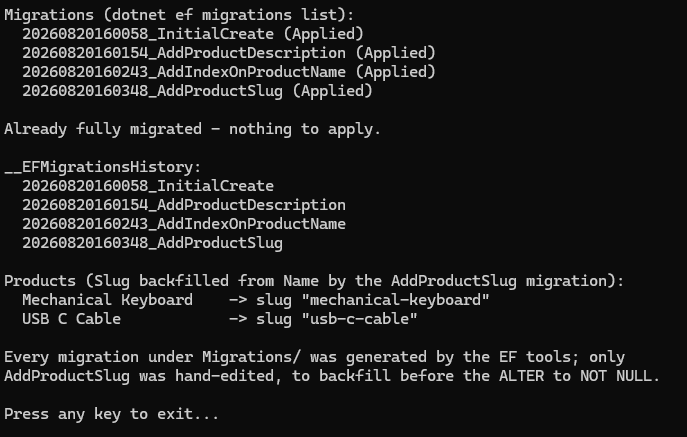
The sample targets its own database (JorgenHocSamples_Migrations) precisely because
this article's commands — database update 0, database drop --force — are destructive.
Point them at a throwaway database, never a shared one. dotnet ef migrations has-pending-model-changes
returns "No changes" for the sample, which is how you confirm a hand-edited migration still
agrees with the model snapshot.
Related Reading
Migrations are one piece of the wider EF Core picture — the complete EF Core guide covers how the model, the context, and the query pipeline fit around them.
Two schema features interact with migrations in ways worth knowing before you hit them: global query filters, which change what your queries return without changing the schema, and raw SQL queries, which you will need when a migration requires a data transformation that the model-level API cannot express.